

The Settings window
Open the Settings, search them for a setting, and where each panel is explained.
The gear wheel in the top bar opens the Settings. On the left, the panels sorted by group; on the right, the chosen panel.
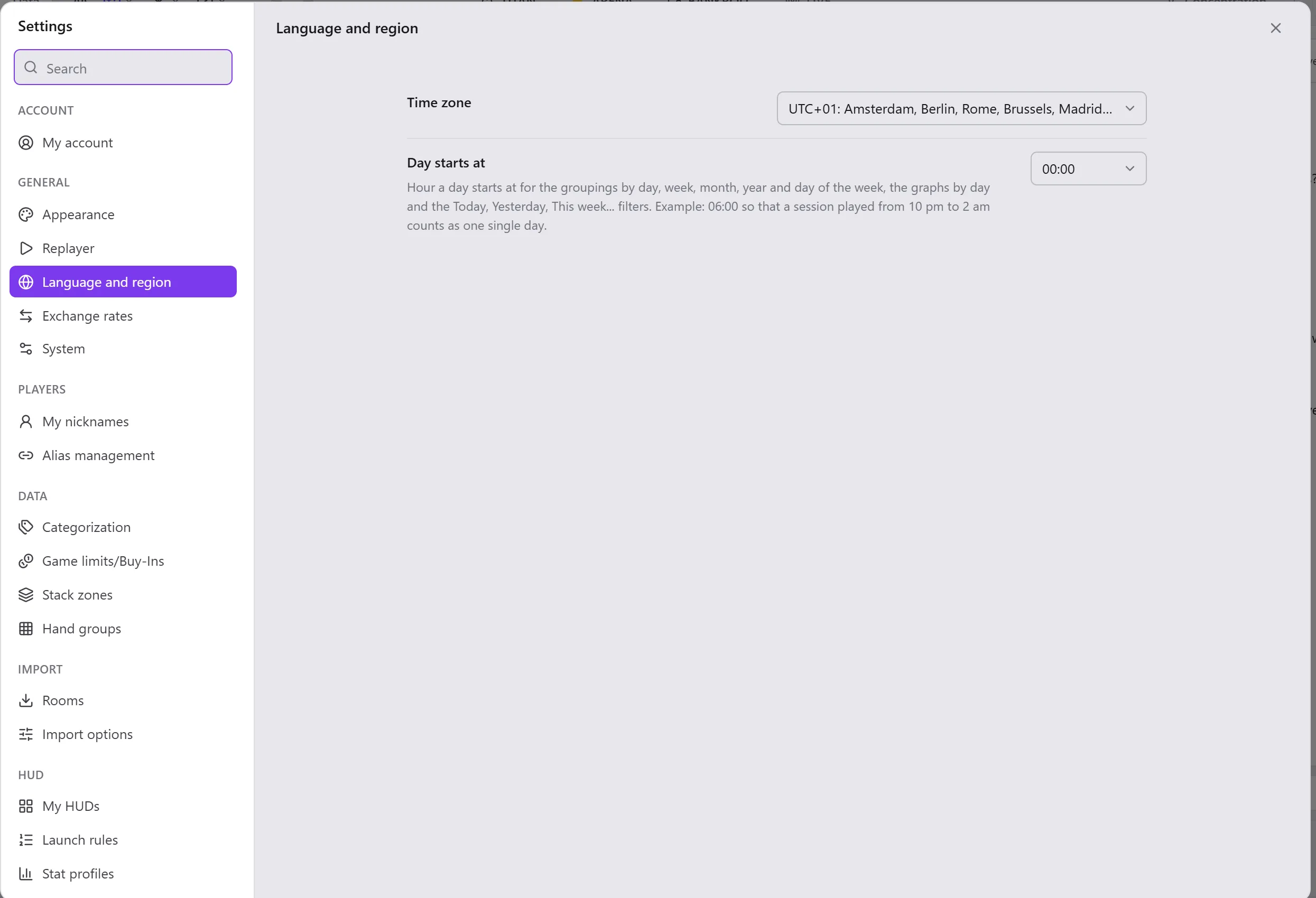
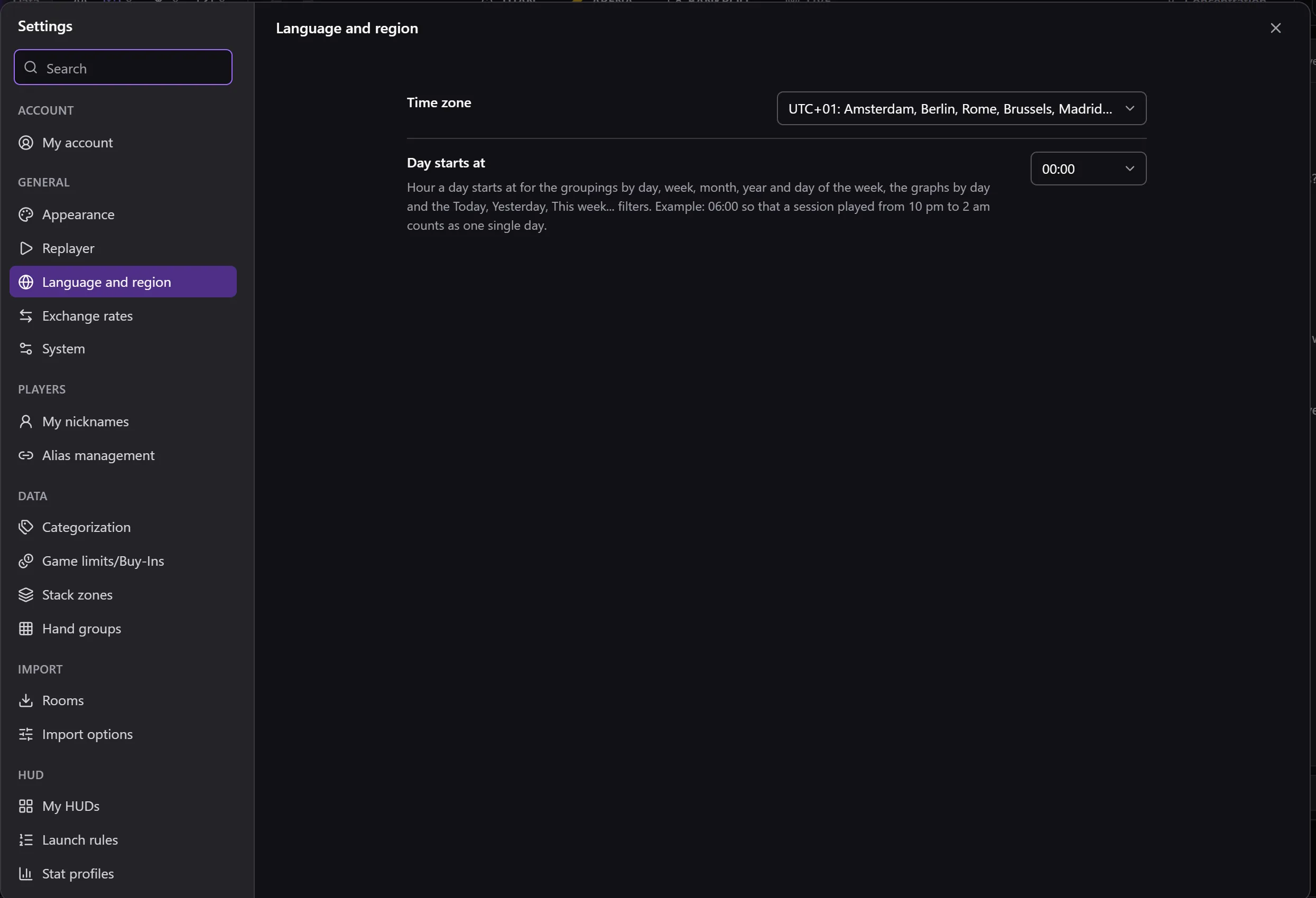
- Search, at the top of the list: finds a panel by its name or by a setting it contains, and a room by its name.
- A switch setting is saved as soon as you change it.
- A list (your nicknames, your aliases, your categories, your limits…) has its Cancel and Save buttons at the bottom of the panel. Leaving the panel with unsaved changes asks you first.
- At the bottom of the list: Log out, the Privacy policy and the Terms of use.
The panels
| Group | Panel | Explained in |
|---|---|---|
| Account | My account | Your Opencards account |
| General | Appearance, Replayer, Language and region, Exchange rates, System | General |
| Players | My nicknames, Alias management | Players |
| Data | Categorization, Game limits/Buy-Ins, Stack zones, Hand groups | Data |
| Import | Rooms | Setting up a room |
| Import options | Import options | |
| HUD | My HUDs, Stat profiles | My HUDs and stat profiles |
| Launch rules | Launch rules | |
| HUD options, Default colors, Default display | HUD options | |
| Keyboard shortcuts | Keyboard shortcuts | |
| Maintenance | Check the database, Backup management, Configuration, Databases, Take over a database, Remove finished games (from LIVE) | Maintenance |
| Opencards | About Opencards, Changelog, Live logs, Support | Opencards |