

The HUD editor
Building a HUD's labels, its badges, its automatic categorisation and its data filters.
The editor opens in its own window: Edit on a HUD of My HUDs, the pencil of the HUD menu, or the HUD › Edit a HUD menu. A stat profile is edited the same way (Edit the profile).
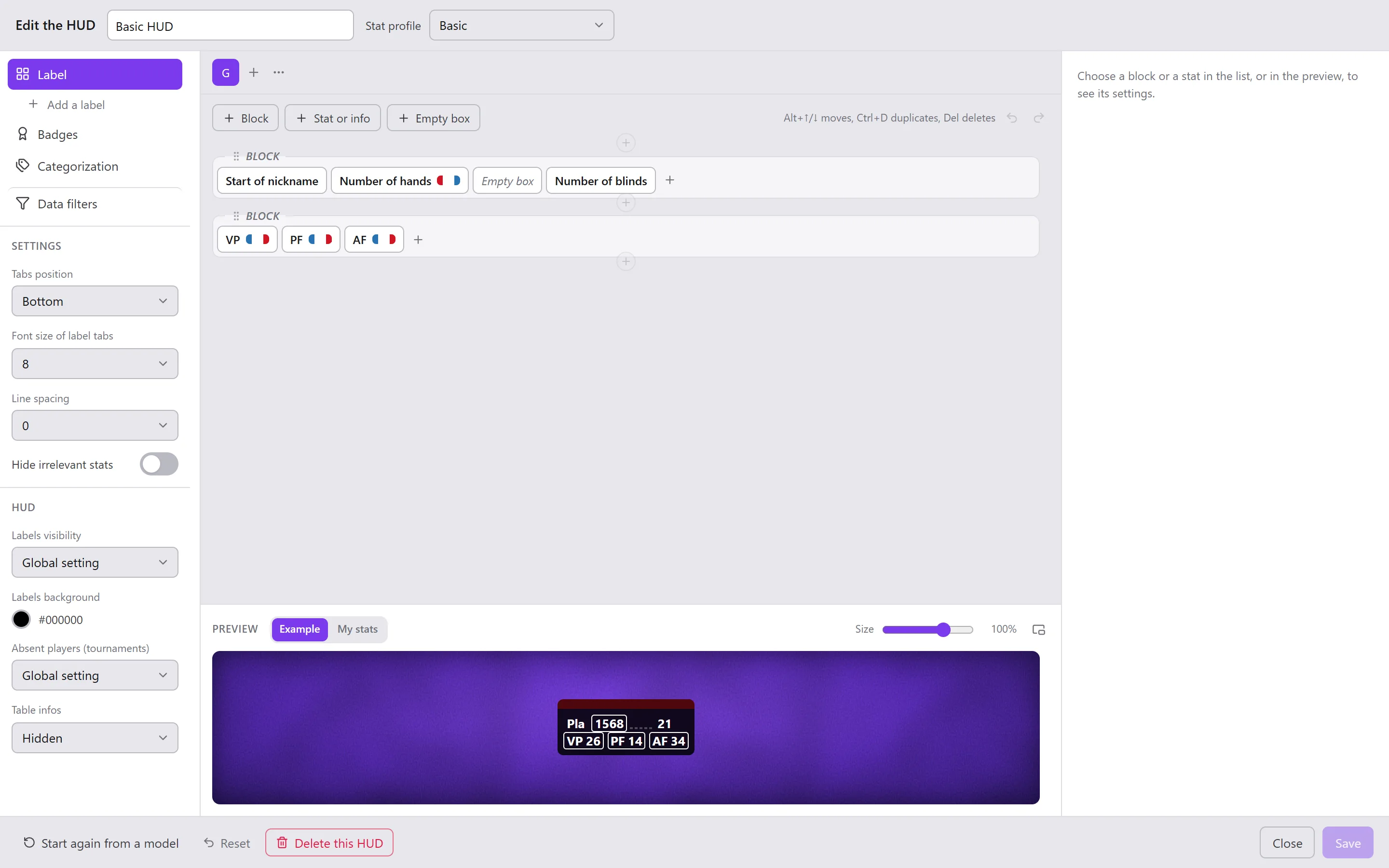
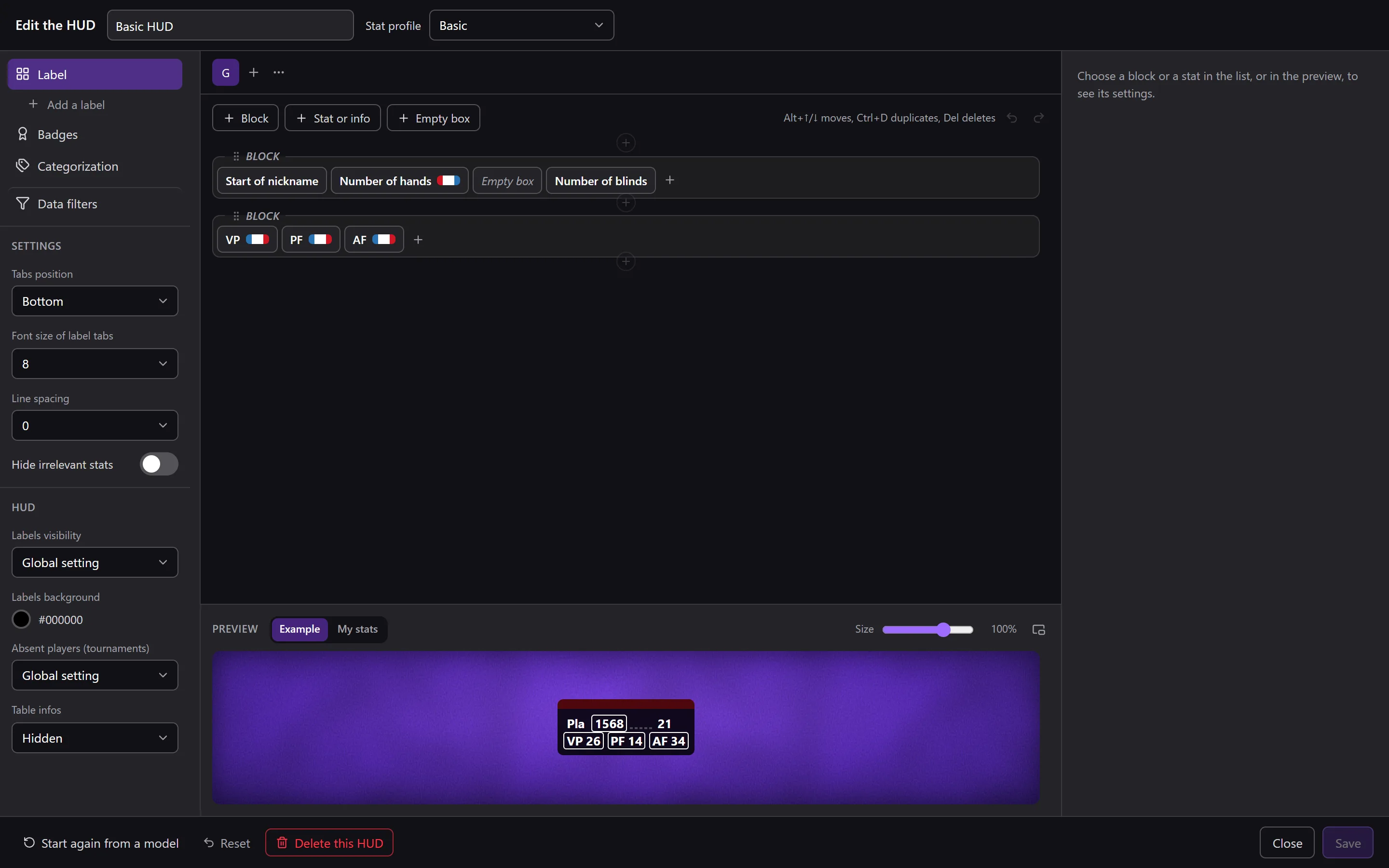
At the top: the HUD's Name and its Stat profile. At the bottom: Start again from a model, Reset (go back to the last saved state), Delete this HUD, Close and Save. Nothing is saved before Save; Ctrl+Z and Ctrl+Y undo and redo.
The parts of the HUD
The left column lists the parts of the HUD:
- Label: each player's main label. Add a label sticks up to three more around it (Place against the main label: above, below, on the left, on the right, in a corner);
- Badges: small tags that show when a player meets their conditions;
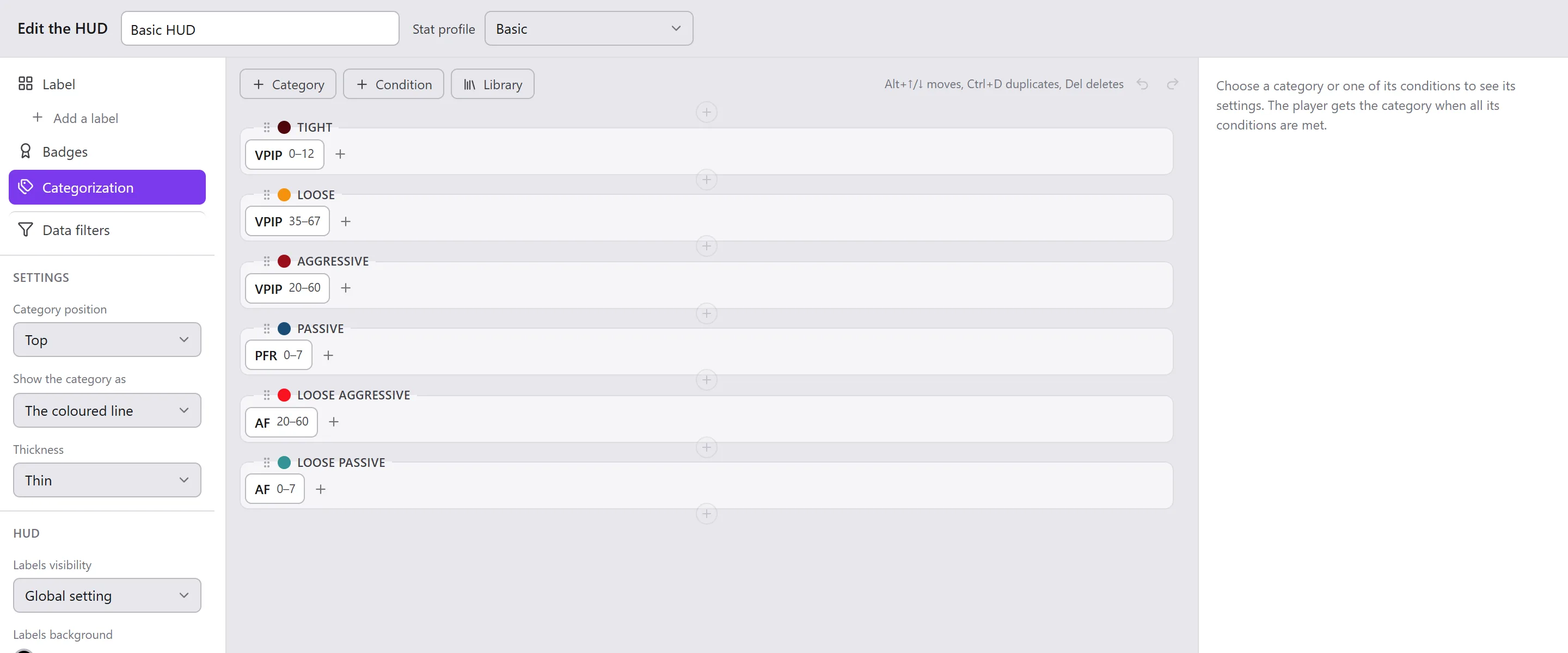
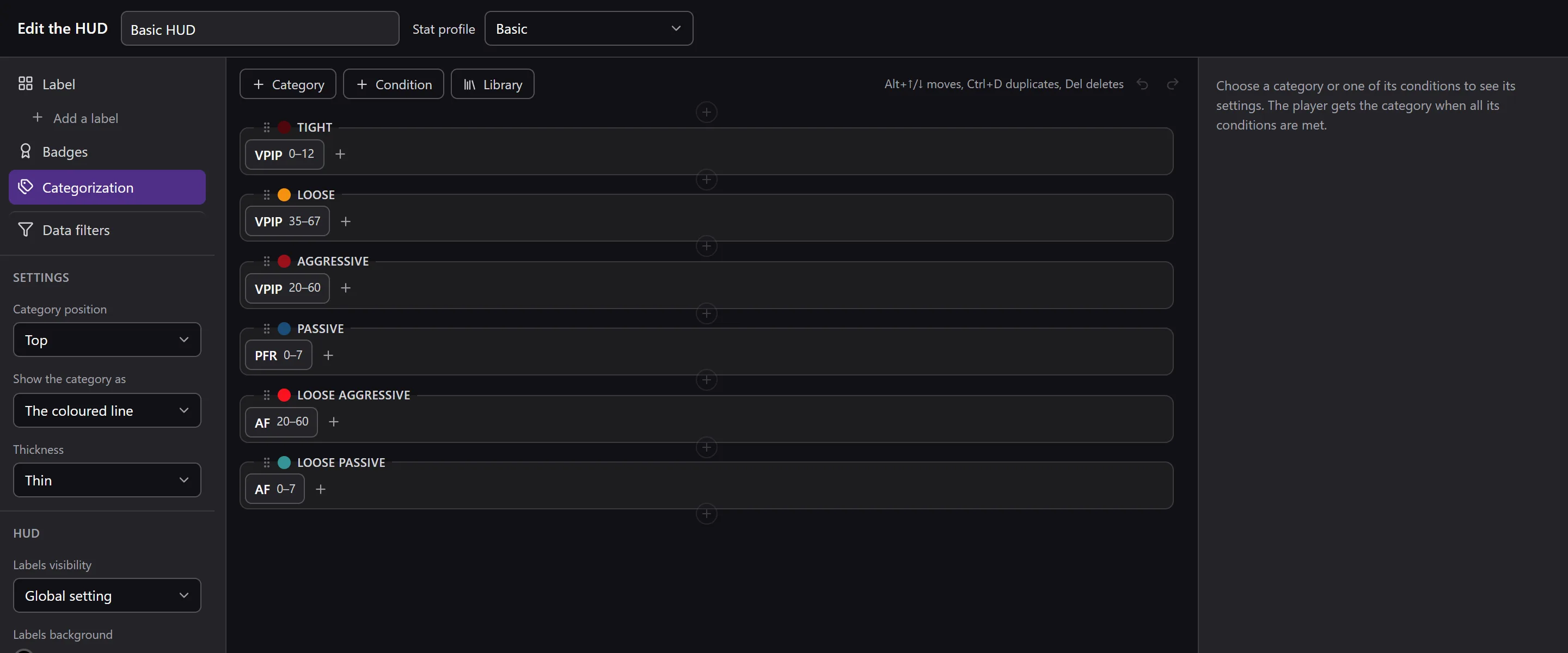
- Categorization: the categories given automatically to the players;
- Data filters: the hands the HUD reads.
Below the list, the Settings of the part shown (place and size of the tabs, line spacing, Hide irrelevant stats) and those of the whole HUD: Labels visibility, Labels background, Absent players (tournaments), Table infos. Global setting takes the one of the HUD options.
Building a label
A label has tabs (at the top; + adds one, a double-click renames it, dragging moves it), and each tab has blocks, each one a line of stats.
- + Block, + Stat or info, + Empty box (an empty box keeps the place of a stat in the grid); the + at the end of a block adds a stat to it.
- Click a block or a stat (in the grid or in the preview): its settings show on the right.
- With the keyboard: Alt+↑/↓ moves, Ctrl+D duplicates, Delete deletes.
Choosing a stat
The stats window searches by abbreviation, name or description, and arranges the stats by Recent, All, By street and By style. A click describes a stat, with its Visual situation when it has one (the Possible case and the Realised case drawn on a table); a double-click or Enter adds it.
Ask VEGA: describe what you are looking for, VEGA suggests the stats that show it, and you can refine your question in the conversation.
A stat's settings
- Show the abbreviation, its Text color;
- Display: the value, the number of realised cases, the number of possible cases;
- Look (size, bold, colouring), As the block by default;
- Min. nb cases;
- the bounds and their colours: the stat takes the colour of the zone its value falls in (Add a bound, Remove this bound, Default bounds);
- filters: Position, Opponent position, Stack (in big blinds), End of hand, Pot type at the flop (Limped, Raised once, 3-bet and more), Position at the flop.
Replace changes the stat while keeping its settings.
A block's settings
Block name, Block font size, Bold, Color type, Infos layout, Alignment, Separate infos, Line opacity. At 0%, an empty line lets the click through to the table: surround the player's plate with empty lines at 0% to be able to click their nickname or their stack.
Badges and categorisation
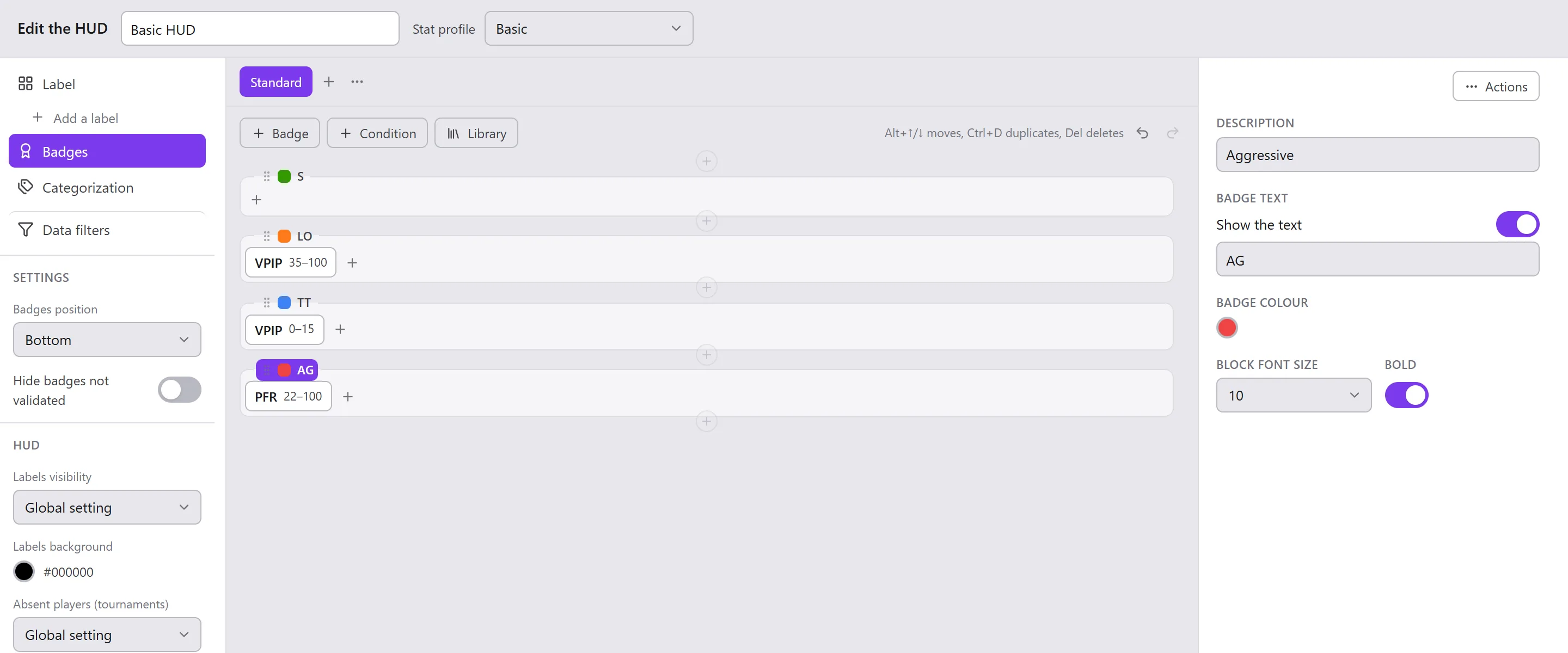
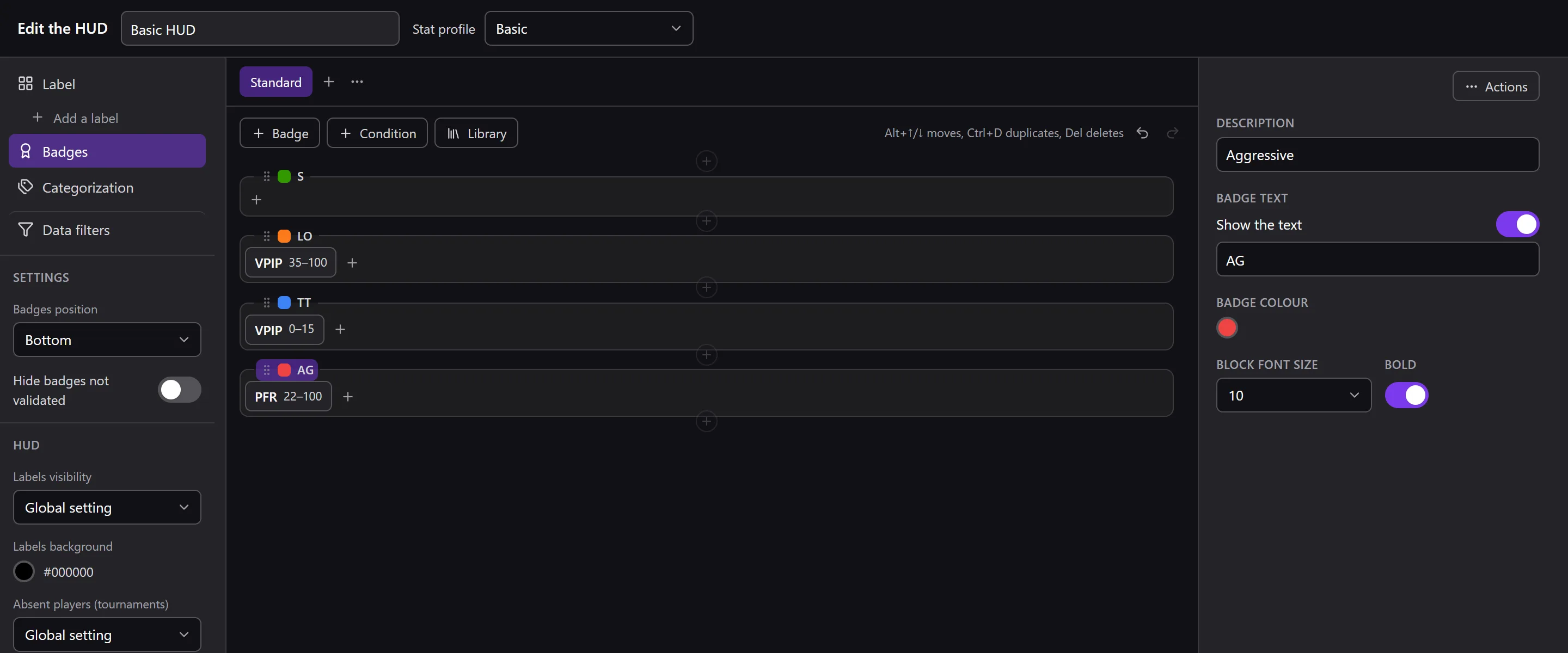
A badge (or a category) has conditions: each one a stat between two bounds. The badge shows, the category is given to the player, when all the conditions are met.
Badges
A badge: Badge text (5 characters), Badge colour, Show the text.
Categorisation
A category: those of Settings › Data › Categorization › Opponents. Its avatar changes with a click, for all the HUDs. Show the category as: The coloured line, The head or The emblem.
The library
The Library offers ready-made templates (Models provided: Aggressive, Loose, Nit, Passive, Calling station, Tight) and keeps yours: right-click on a badge or a category, Save … in the library.
Data filters
The hands the HUD reads to count its stats:
- the Hero's sample and the Opponent's sample: All hands, Game hands, Table hands, All or vs opponent if HU, All or vs the opponent with the most hands, and the period;
- the General filters (Max hands, Nb. players);
- the Additional filters (limits, specialties, Only specialty of current game).
The preview
Below the grid, the label as it will be: Example (made-up values) or My stats (your real values, with the HUD's data filters). Size enlarges or shrinks it; its button detaches it into its own window; its top edge can be dragged to change its height.
Starting again from a model
Start again from a model replaces the content (label or profile, badges, categorisation) with that of a model. The name, the linked profile, the data filters and the default uses stay. Ctrl+Z goes back.