

HUD options
The settings shared by all your HUDs, their colours and their default display.
HUD options
Settings › HUD › HUD options (also in the Change the HUD list of the HUD menu). Each setting is saved at once.
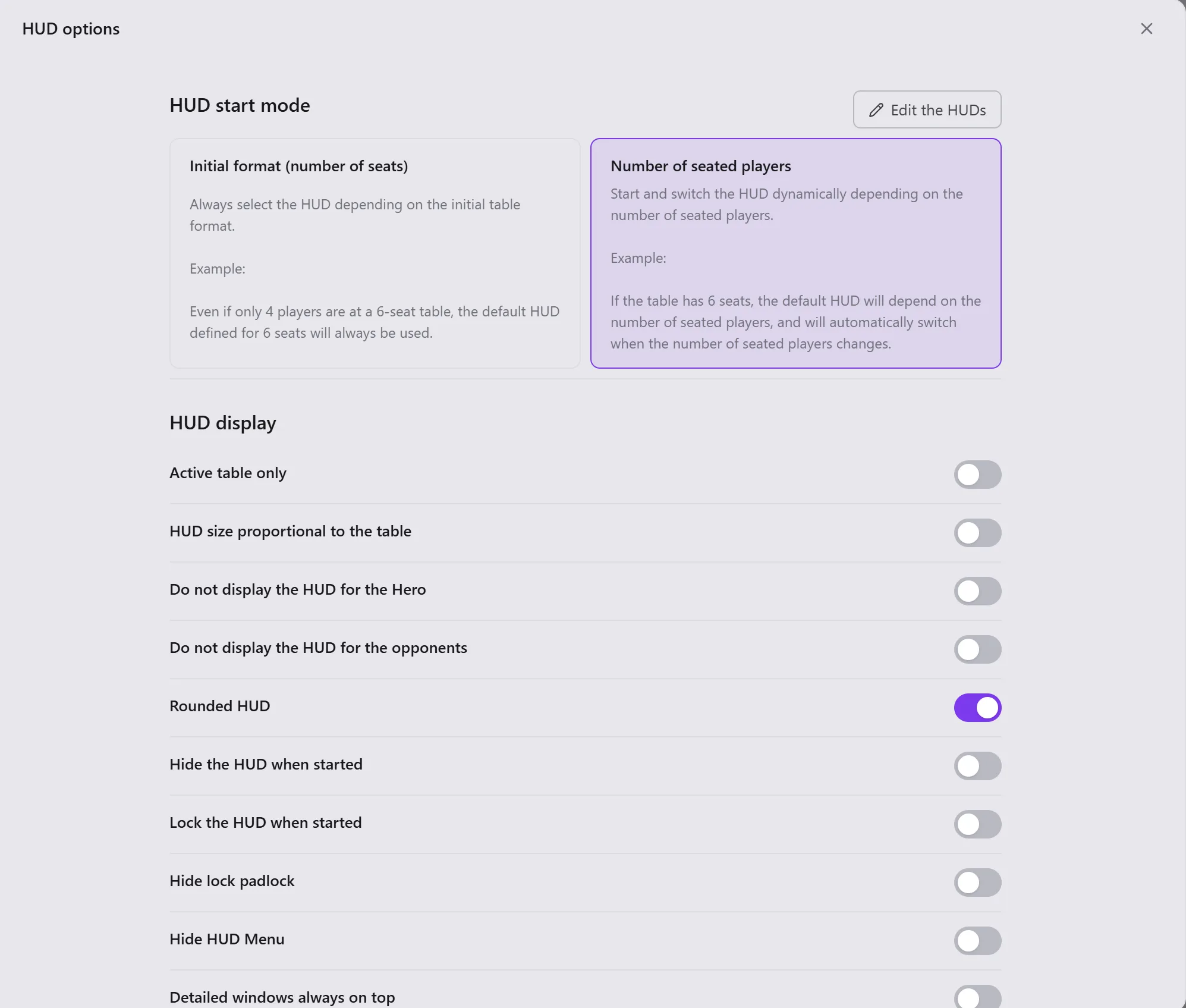
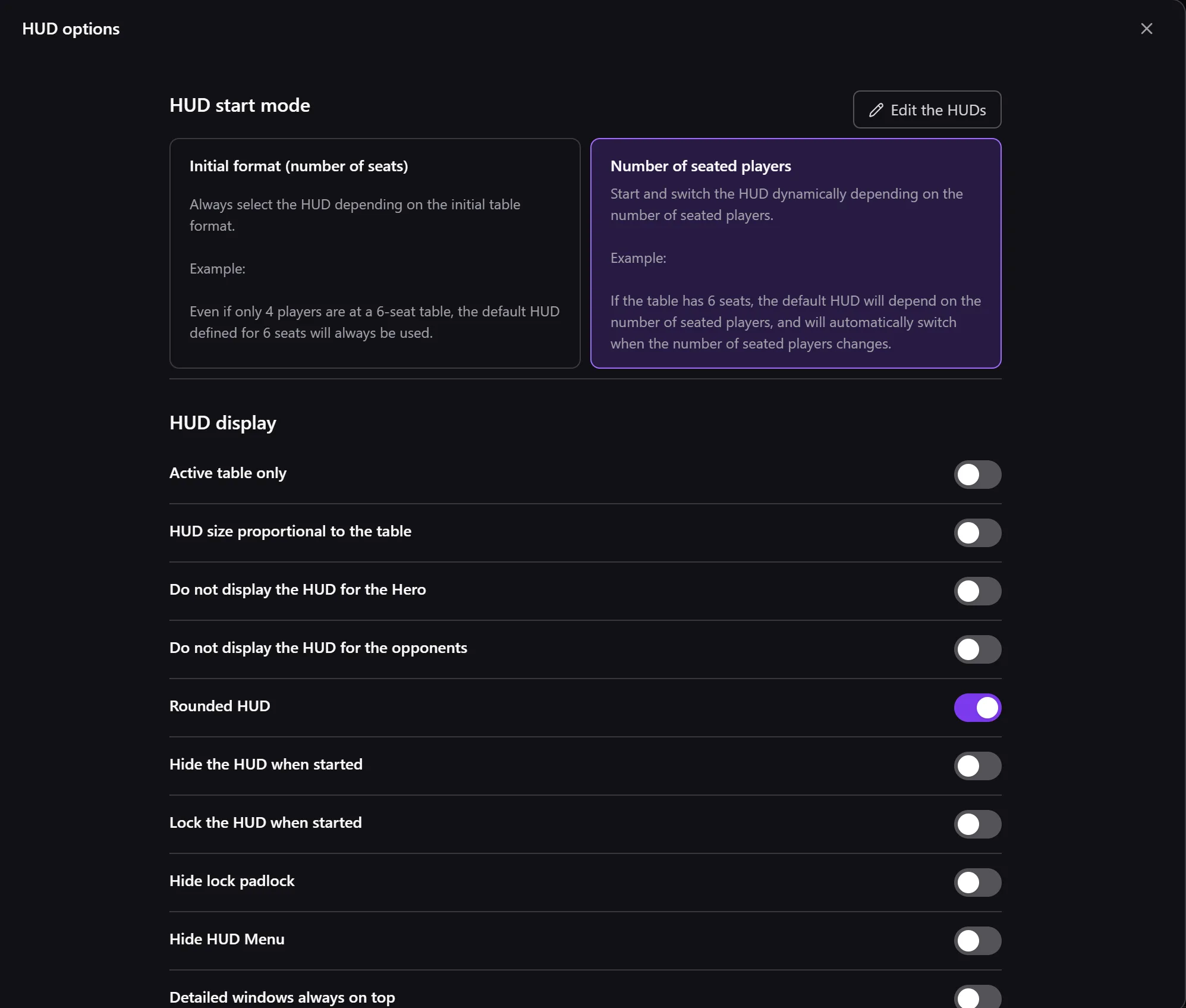
HUD start mode: Initial format (number of seats) or Number of seated players (see Launch rules). Edit the HUDs leads to My HUDs.
| Section | Settings |
|---|---|
| HUD display | Active table only, HUD size proportional to the table, Do not display the HUD for the Hero, Rounded HUD, Hide the HUD when started, Lock the HUD when started, Hide lock padlock, Hide HUD Menu, Detailed windows always on top, Show 99 if stat value equals 100 |
| Labels | Synchronize labels, Transparent labels (and their transparency), Fully show labels only on rollover, Hide absent players (tournaments), Always show labels inside the screen, Tooltips on labels, Size of the tooltips |
| Hand summary | Automatic summary, Show equity, Summary display, Show the hand history column (see the hand history column) |
| Notes | Do not open the Note via the HUD, Auto save notes, Open multiple notes/profiles, Note background color |
| Opencards | Opencards publication (the publish button of the HUD menu), Confirm publication, Publish on Opencards as private |
| Attach HUD | Attach HUD (Pokerstars), Attach HUD (Winamax), Attach HUD (iPoker) |
Absent players in tournaments
No hand history writes that a tournament player is absent: they get their cards and the room folds for them. Hide absent players (tournaments) hides the label of these players; the setting's tooltip explains how Opencards recognises them.
The automatic summary
At the end of a hand, the HUD can show the cards revealed, and each player's equity if Show equity is ticked.
- Automatic summary: when it shows: Only pots > 50bb, > 30bb, > 10bb, Only if showdown, or Always.
- Summary display: where it shows. Next to labels: on the players' labels, for the chosen duration; Below the menu: below the HUD menu bar, the duration can be Infinite.
Default colours
Settings › HUD › Default colors: the colours a stat gets when you add it to a HUD, according to its type (Selection, Aggressiveness, Passivity, Resistance) and its zone. Model applies a ready-made set of colours. Apply to all HUD and profiles gives these colours to all the stats of all your HUDs and profiles, instead of their own (Opencards asks first).
Default display
Settings › HUD › Default display: what a block added to a label, a profile or a badge gets: Bold, Color type, Infos layout, Alignment, Separate infos, Display statistics abbreviations. Apply to all HUD and profiles works the same way.